Nulstil min multifaktorgodkendelsesmetode
Hvis en administrator eller bruger mister adgang til deres multifaktorgodkendelsesmetode (f.eks. Hvis de har mistet deres telefon eller afinstalleret deres godkenderapp, kan en administrator nulstille deres multifaktorgodkendelse og rydde deres metoder.
Vælg E -mail & Fanen Office , og følg trinene der først. Hvis du har problemer, kan du prøve trinnene i fanen Entra administrationscenter i stedet for.
- Log på din e -mail & Office -dashboard (brug dit brugernavn og din adgangskode til GoDaddy).
- Vælg Administrer ud for en bruger.
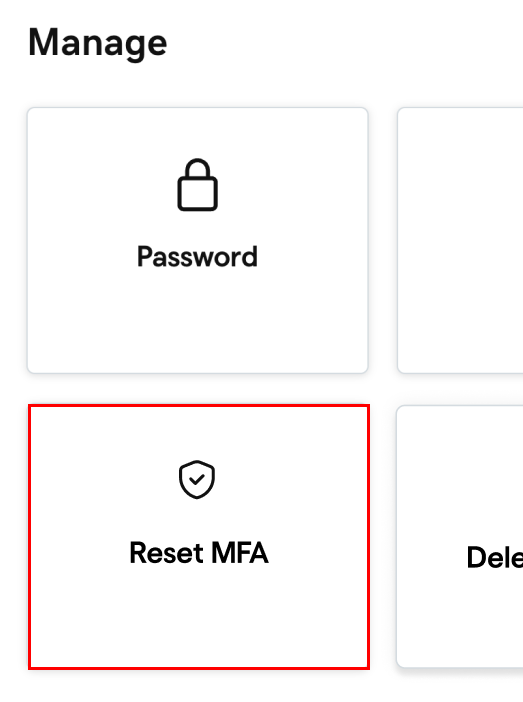
- Under Administrer skal du vælge Nulstil multifaktorgodkendelse .
- Før du kan nulstille multifaktorgodkendelse, bliver du bedt om at bekræfte din identitet. Bekræft, at det er dig, der bruger en godkenderapp, din adgangskode eller en engangskode, der sendes via SMS.
- Når du er blevet bekræftet, skal du vælge Nulstil , når du bliver bedt om at bekræfte, at du vil nulstille brugerens multifaktorgodkendelse. Du får vist en meddelelse, der bekræfter, at MFA er nulstillet.
MFA bliver nulstillet for brugeren, og alle deres metoder bliver ryddet. Næste gang de logger ind, skal de tilføje en ny metode. Hvis du får en fejl, skal du i stedet følge trinnene i fanen Entra administrationscenter .
- Log på Microsoft Entra -administrationscenter . Brug din Microsoft 365 -e -mailadresse og adgangskode (dit brugernavn og din adgangskode til GoDaddy fungerer ikke her).
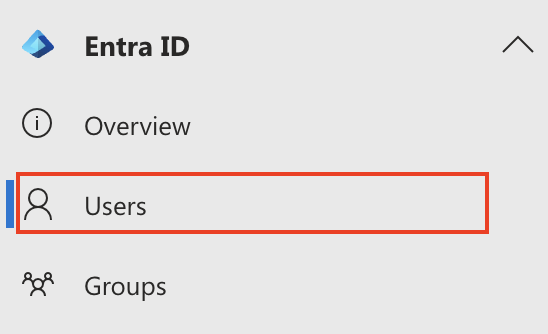
- Vælg Entra -id på venstre side, og derefter Brugere .
- Vælg brugerens Visningsnavn . Brugerens profil åbnes.
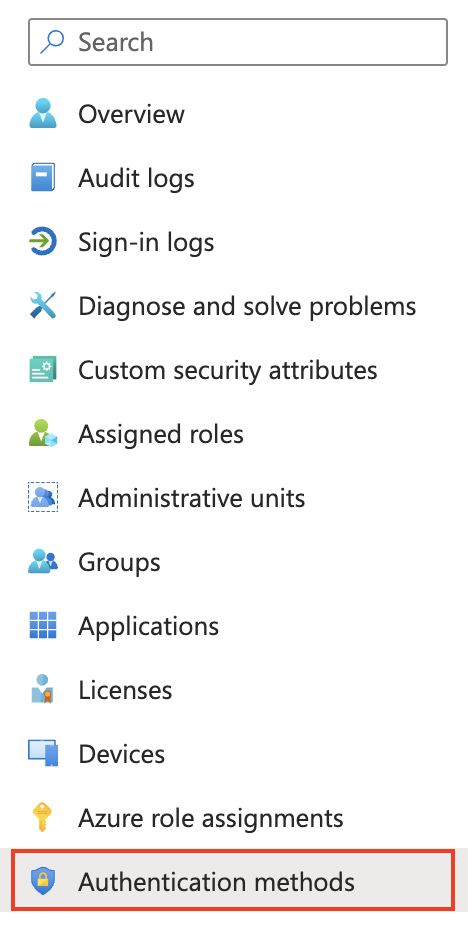
- Under søgefeltet skal du vælge Godkendelsesmetoder .
- Vælg Tilbagekald multifaktorgodkendelsessessioner (du skal muligvis vælge
 Mere først).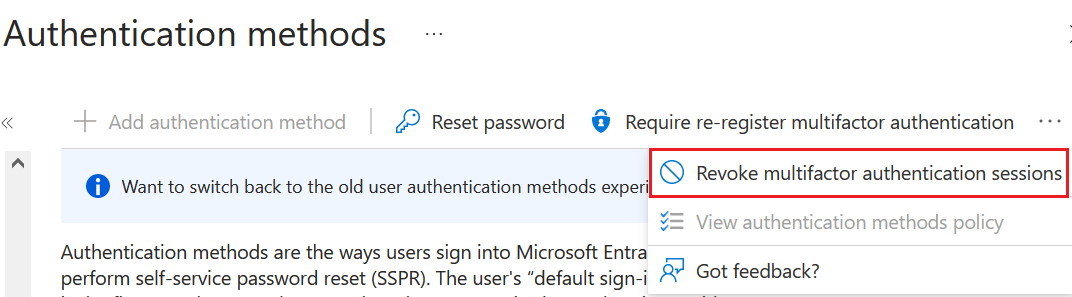
- Vælg Kræv genregistrer multifaktorgodkendelse .
- Vælg OK for at bekræfte.

Brugeren bliver bedt om at konfigurere sin nye multifaktorgodkendelse under den næste log ind. Den bruger, hvis logonmetode blev nulstillet, skal slette den metode, som de ikke længere har adgang til.
Hvis du har prøvet trinnene i begge faner og har problemer med at nulstille multifaktorgodkendelse, bedes du kontakte en GoDaddy -guide for hjælp.